Send manga to your Kobo, no cable
Kobo has no equivalent of Amazon’s Send to Kindle address, which is why the standard advice for getting a converted volume onto one has always been to find a USB cable. There is now a better answer: your account carries a permanent 6 digit code, and typing it into the Kobo’s own web browser opens your shelf, with every file you have finished listed and ready to download onto the device.
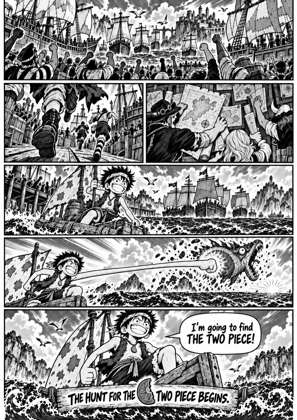
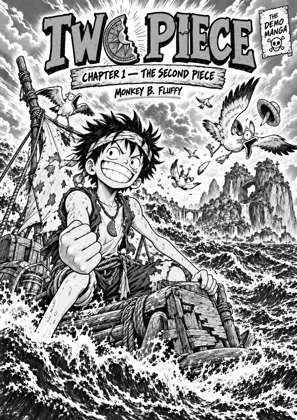
↑ Upload and configure in our Studio
The Kobo browser is a genuine one and downloads files properly, so this route works end to end. Convert your CBZ, CBR or PDF to a KEPUB built for your exact Kobo model, send it to your shelf, and pick it up on the device. The cable stays in the drawer, and nothing gets installed on the Kobo.
- Files auto-delete after 24 hours
- Nothing to install on the Kobo
- Free to use
- The genuine open-source KCC engine
How to send a volume to your Kobo
Convert for your Kobo model
Drop in the archive and pick your device: Clara, Libra, Sage, Elipsa, Forma, Aura and the colour models all have real profiles. KEPUB output gives you Kobo’s native comic viewer and fast page turns.
Send the finished file to your shelf
Choose To e-reader on the completed conversion. It is staged on your account’s shelf, which keeps the last 10 files you sent.
Open the browser on the Kobo
Settings, then Beta features, then Web browser. Go to the shelf page and type your 6 digit code. The code is permanent, so bookmark the page and next time it is two taps.
Tap Download
The KEPUB saves into the Kobo’s own storage and appears in your library. Files clear off the shelf after 24 hours.
Nothing is installed on the Kobo
The shelf is an ordinary web page designed to stay legible on e-ink. That is the whole reason it works on a device that will never run an app: the browser it already has is enough.
The profile is doing real work
Over a recent fourteen day window 67.5% of people here picked a named e-reader preset rather than a bare format. Pages built for the Kobo’s exact screen render sharper and weigh less than pages the device has to rescale on the fly.
Frequently asked questions
Can I email a file to my Kobo like a Kindle?
No. Kobo runs no receiving email service, so there is no address to send to. That absence is precisely why the code and browser handoff exists: it gives the device a way to fetch a file without one.
Does this work on Boox and other Android readers?
Yes. Any reader with a working browser that can save a file can open a shelf, which covers Boox and most Android e-ink devices. Kindle is the weak case: its Experimental Browser usually refuses downloads, so Kindle owners should use Send to Kindle or a cable instead.
Is the code permanent?
Yes, until you choose to replace it. Generating a new one immediately stops the old one working, so any device still holding it needs the new code. Files already on your shelf stay there.
Why KEPUB rather than EPUB?
KEPUB is Kobo’s own flavour and unlocks the native comic viewer, the faster page turns and the reading statistics. A plain EPUB opens on a Kobo but reads like a generic book. Both are available here.
How is this different from send2ereader?
send2ereader pioneered the pairing code handoff and it works well. The difference is what arrives: it is a transport, so a CBZ lands on the Kobo as the same CBZ. Here the volume has already been rebuilt by KCC for your model’s screen before it reaches the shelf.
Does USB still work?
Of course, and it remains the fallback with no size ceiling. Connect the Kobo, copy the KEPUB into its storage, eject. The wireless route just means you rarely need to.
Conversion runs on Kindle Comic Converter (KCC), the open-source engine, which despite the name builds Kobo profiles and KEPUB output too. The wireless handoff is a delivery step after that pipeline, so the file reaching your Kobo is already built for it.
KEPUB built for your model, delivered over Wi-Fi, no cable